The phone is with your teammate. The customer is waiting.
Give the conversation a shared home. Pick it up in the team inbox and use Assign to me to take the next reply.
A shared inboxA shared inbox, campaigns, and order confirmations for WhatsApp. Give your team a place to reply, follow up, and keep things moving.
Pre-launch. Invite-only access.
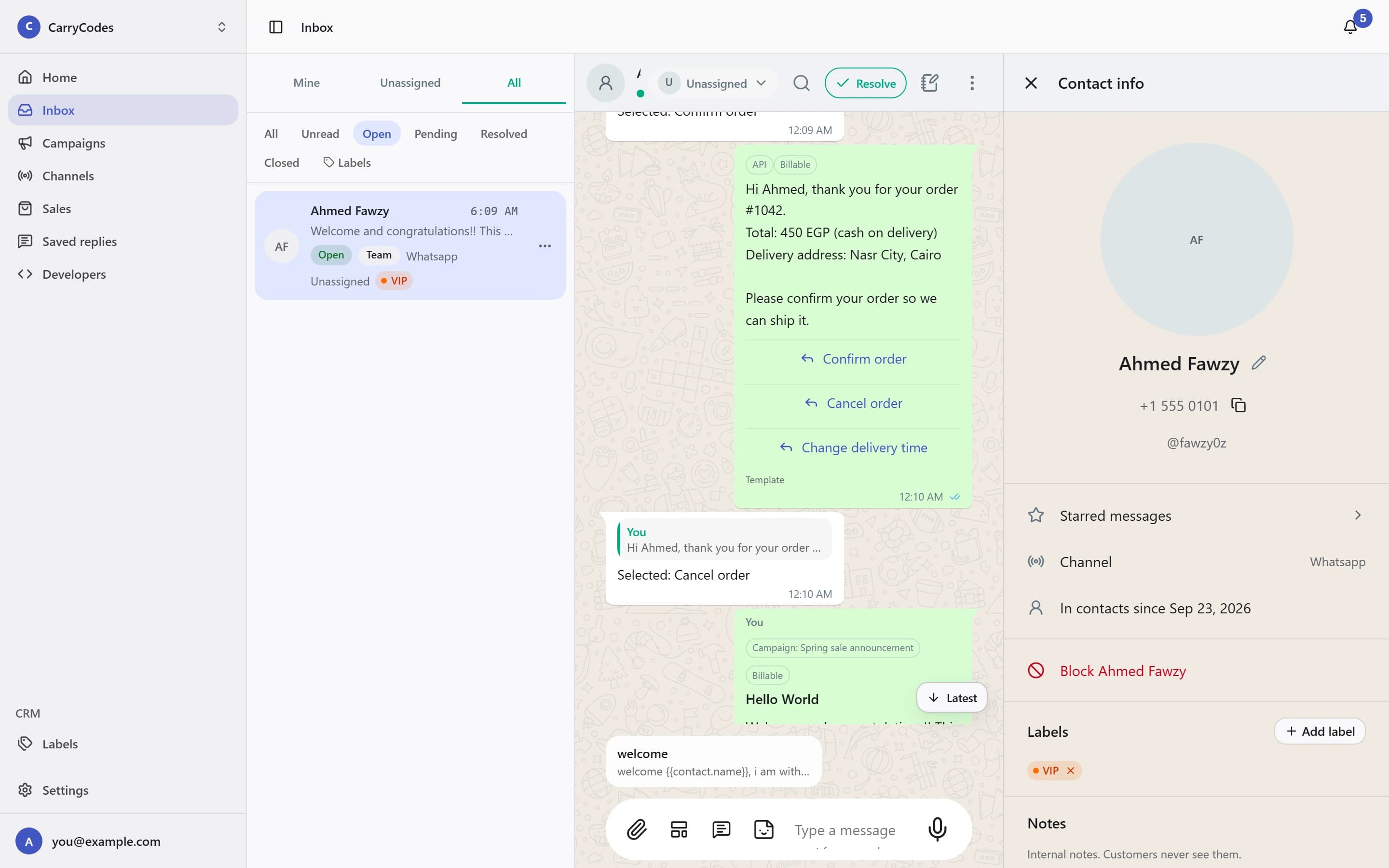
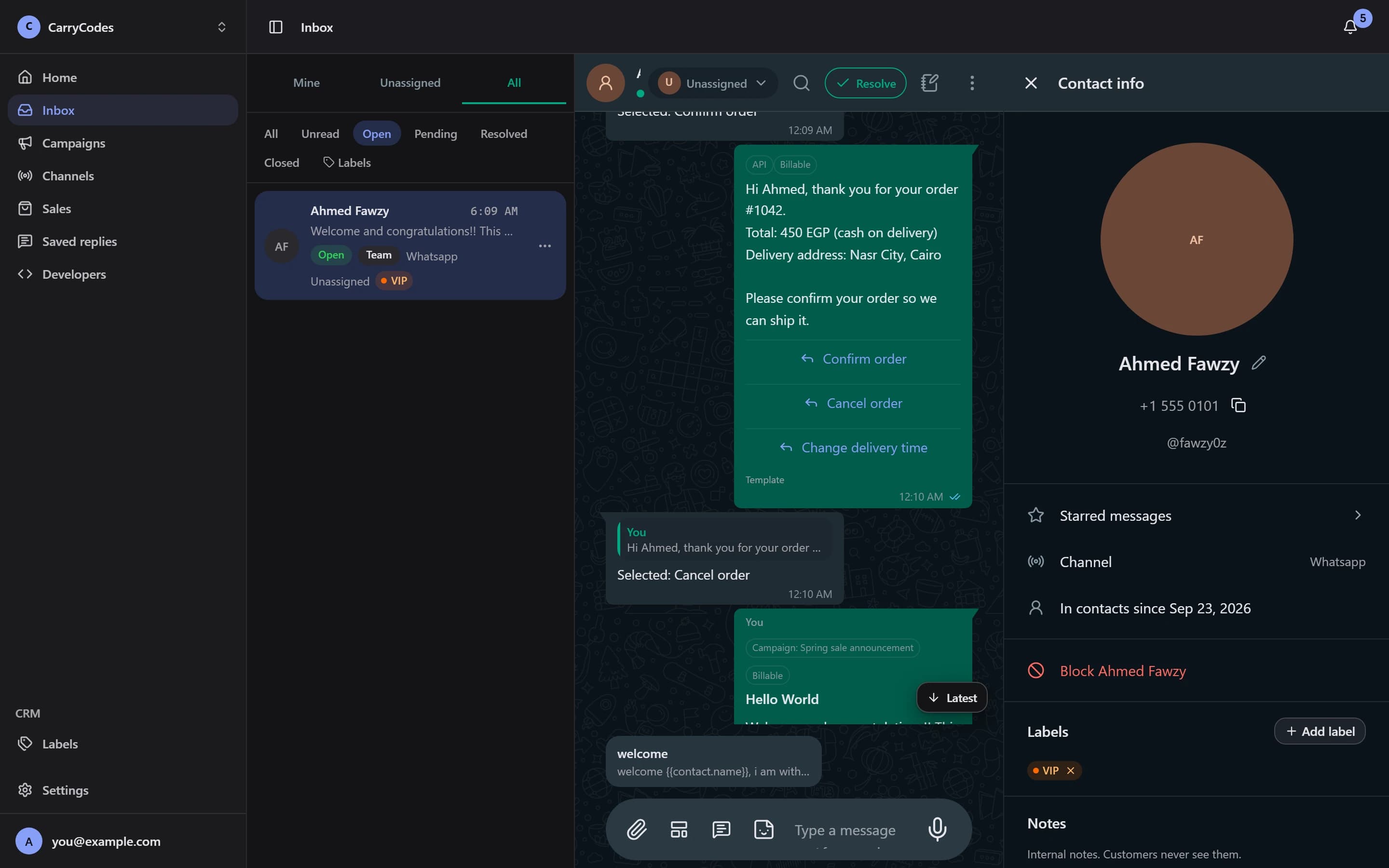
Illustrative annotations · real product screenshot
The little moments that make a busy day feel busier. Here is where Watification fits.
Give the conversation a shared home. Pick it up in the team inbox and use Assign to me to take the next reply.
A shared inboxCheck assignment, claim an unassigned chat, or use Assign to… when a teammate should take over. Leave a private contact note for the context they need.
Assignment & contextHave your store integration ask on WhatsApp before dispatch. Review whether the customer confirmed, cancelled, or asked to change time in Log.
Order confirmationsOutside the customer’s reply window, use a template approved by Meta. Sending it does not reopen the window; the customer needs to message again.
Templates & the reply windowType / and a shortcut to bring a shared saved reply into your draft. Make it fit the conversation, then send it yourself.
Shared saved repliesFind your kind of day. Open a journey to see the next steps.
A developer connects your store to the COD API for each order.
Choose an optional reminder, deadline, and delivery options.
They can confirm, cancel, or choose another delivery time.
Refresh Log to review the answer beside your order reference.
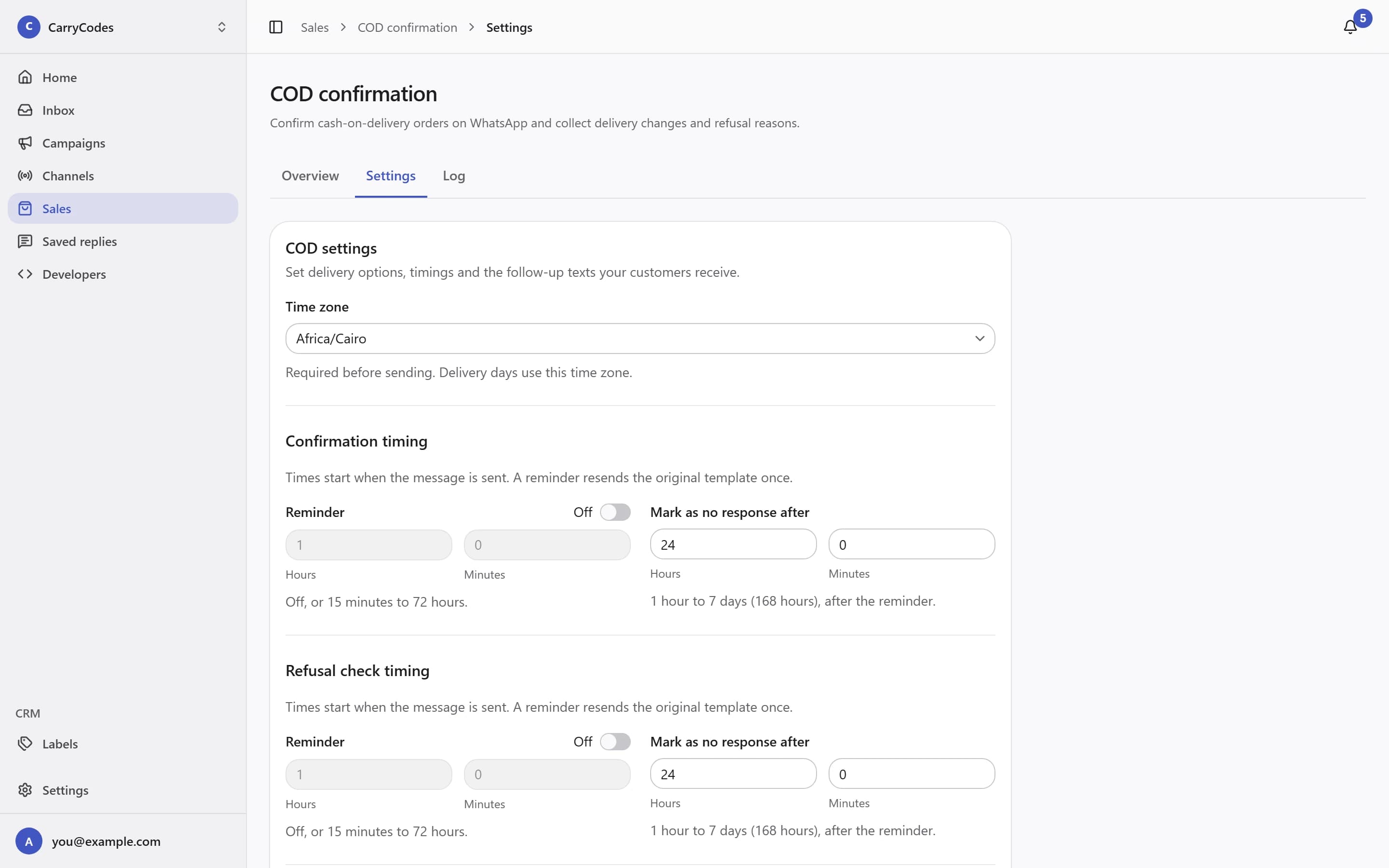
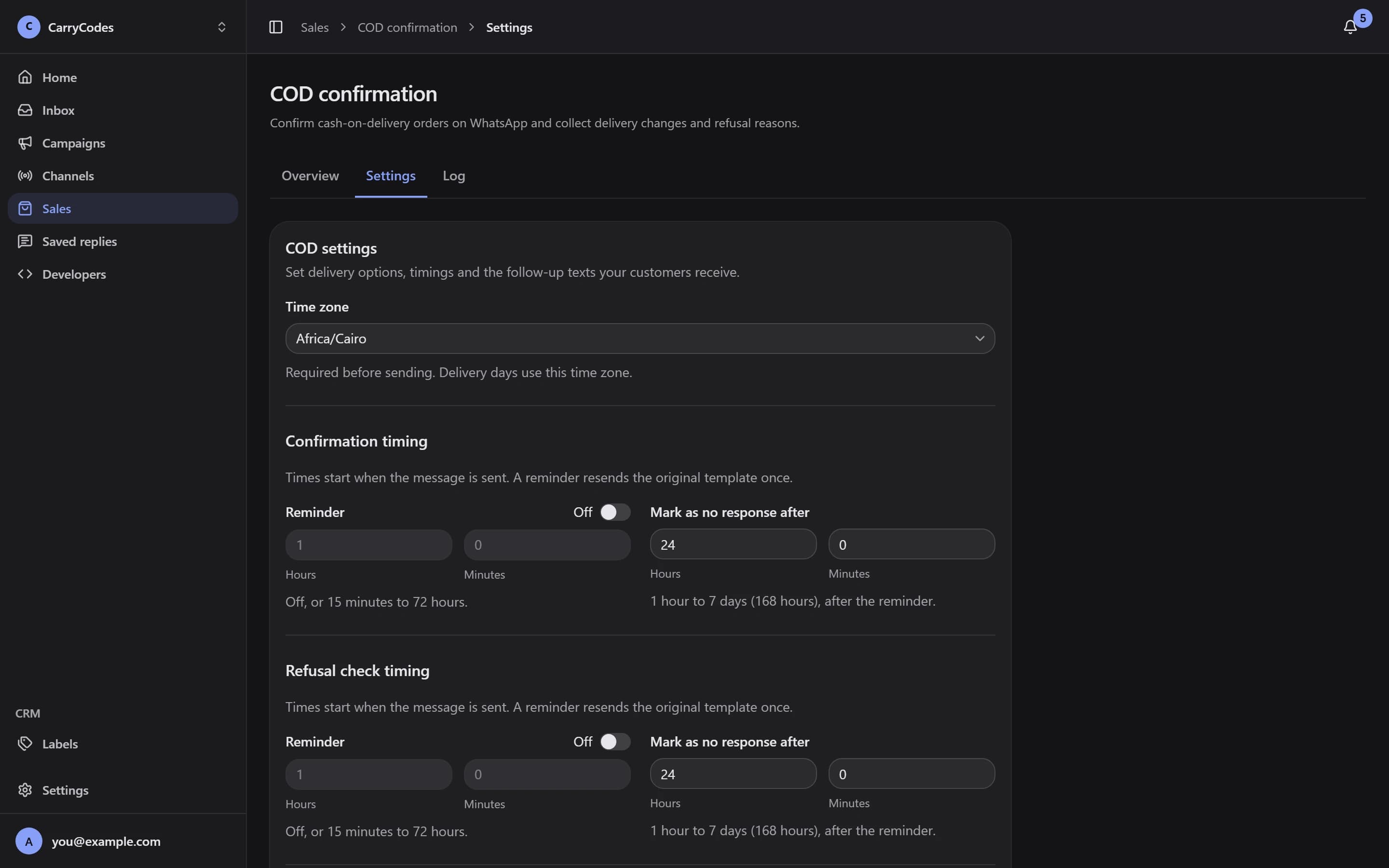
Set the timing and delivery choices your customer will receive.
Open Unassigned and claim the conversation with Assign to me.
Read private contact notes and shared labels before replying.
Insert a saved reply with /, edit the draft, and send it yourself.
Resolve it; a new customer message reopens the conversation.
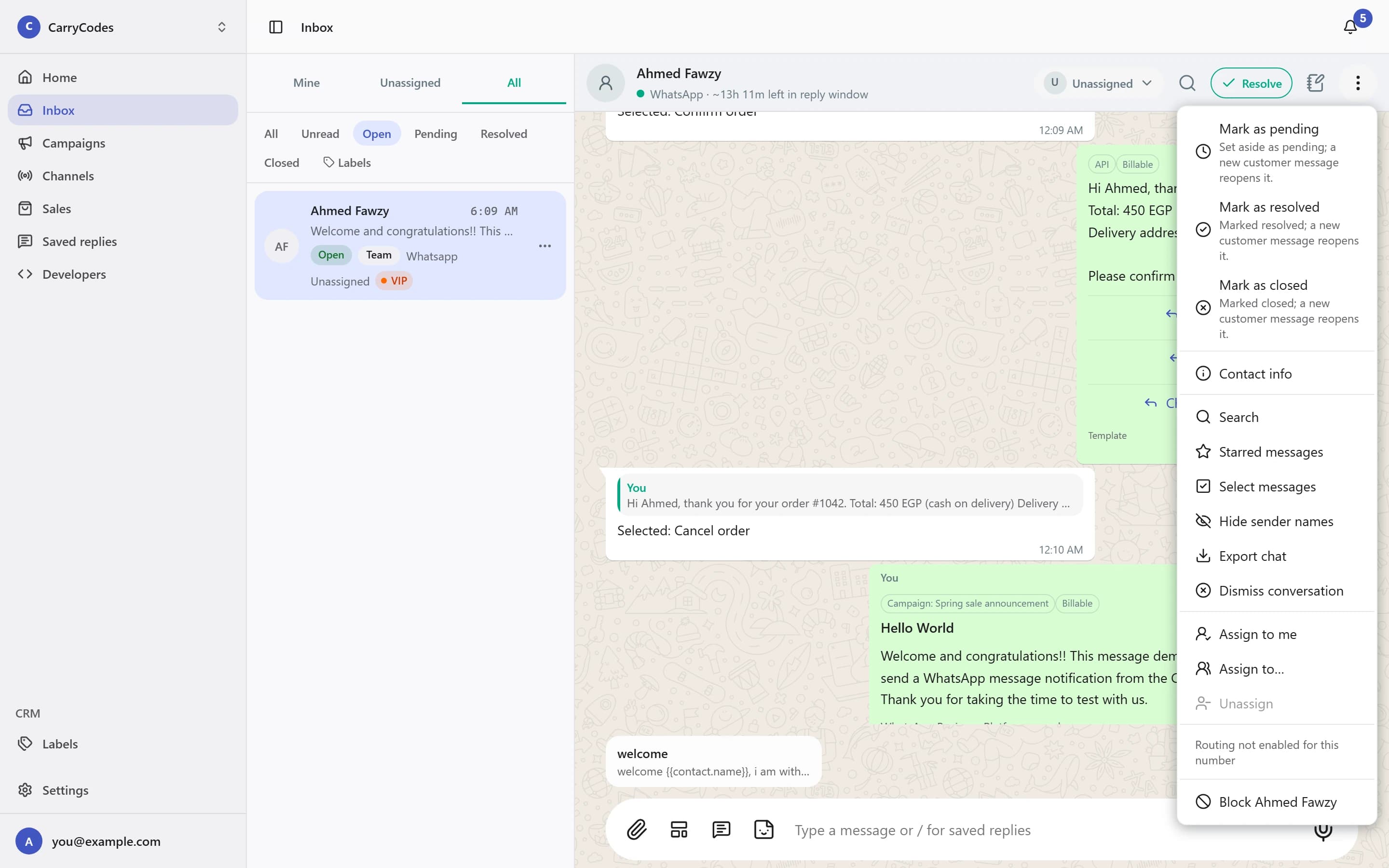
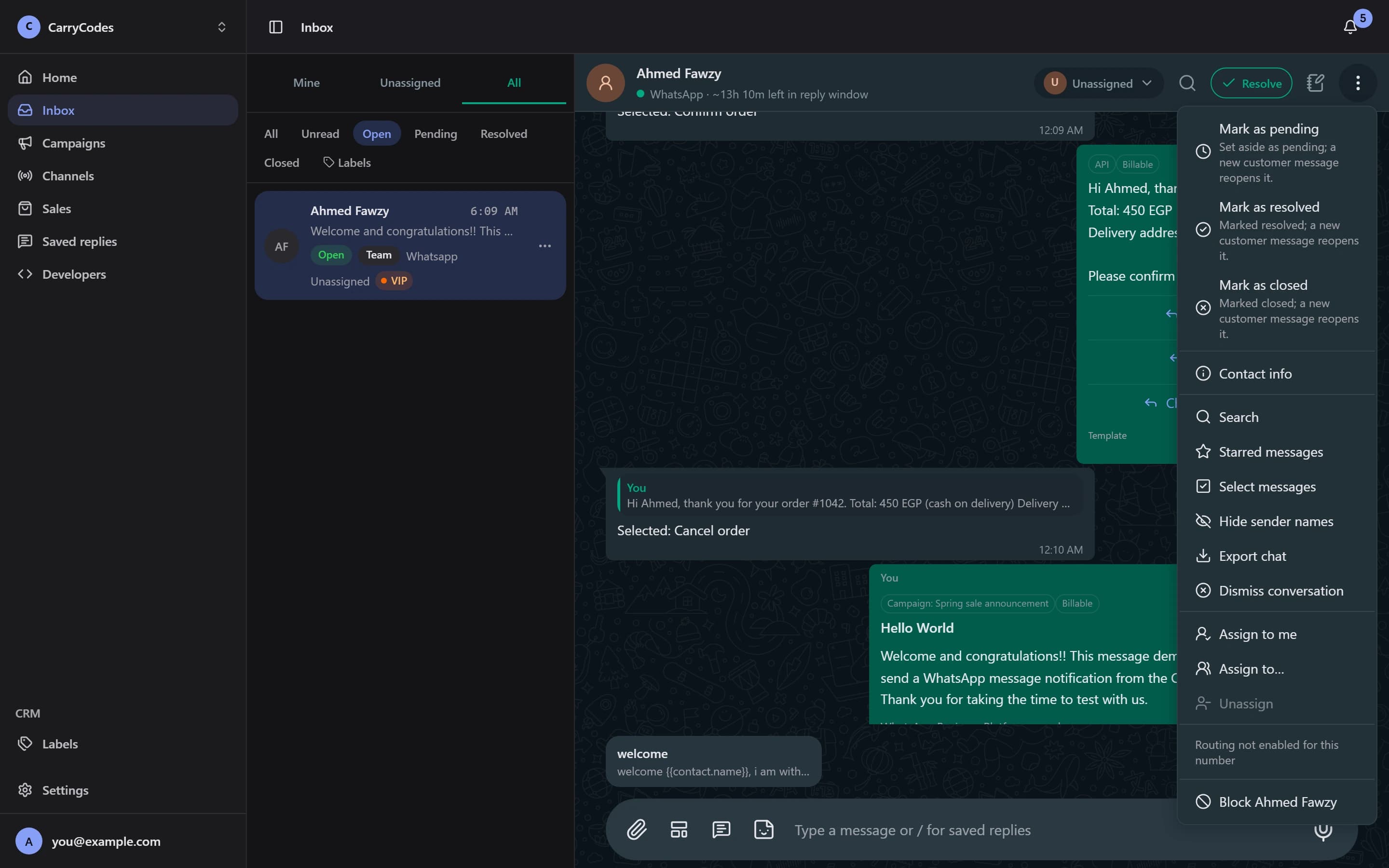
Queues and assignment give the next reply an owner.
Include or exclude labels; CSV imports require contact consent.
Send a real test to an eligible sample. Tests use campaign quota.
Use Schedule campaign, then Pause or Resume when needed.
Follow Eligible through Replied, with exclusion and failure reasons.
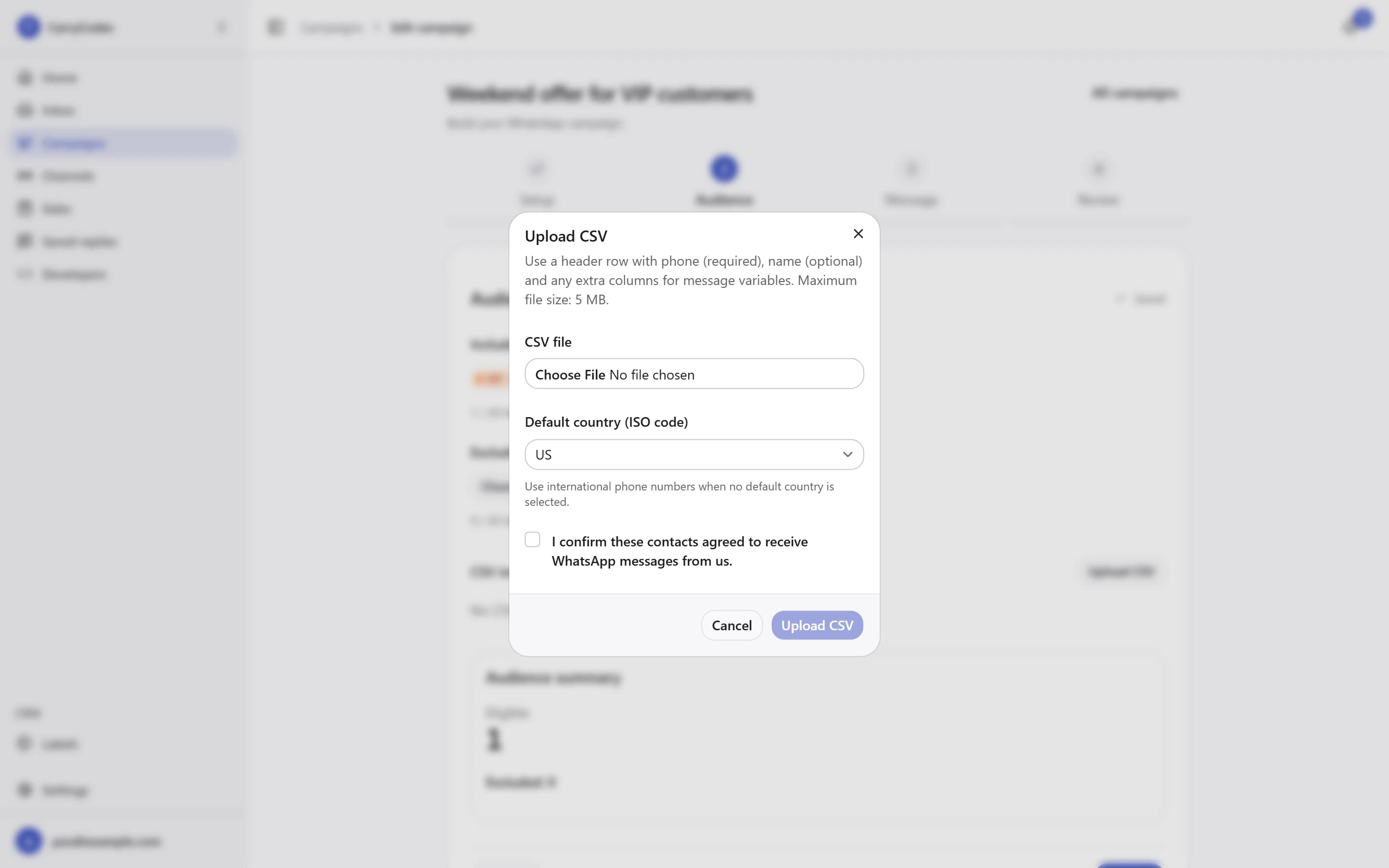
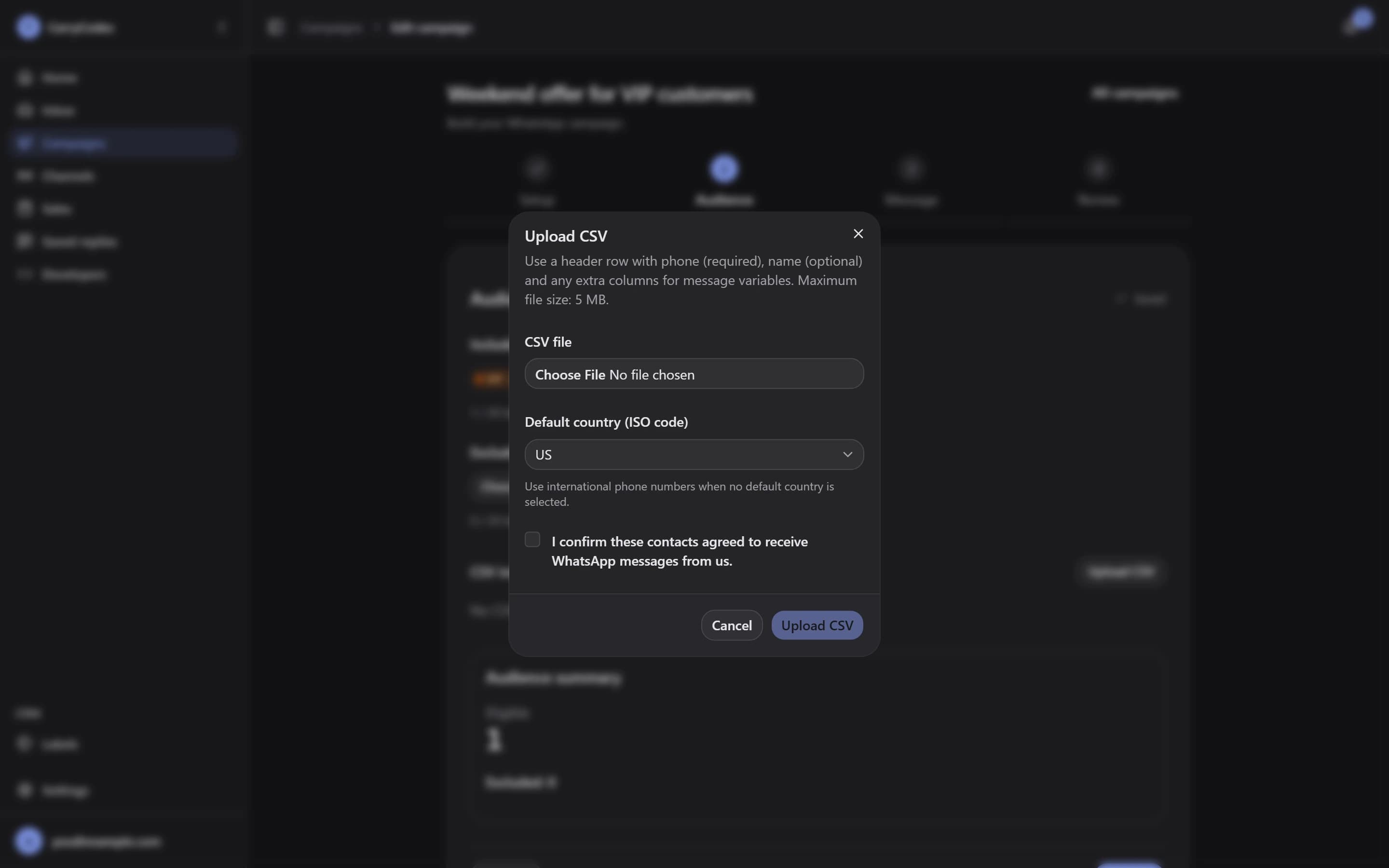
Choose the audience and check eligibility before sending.
Save a named API key server-side and prepare an approved template.
Your app generates and verifies the OTP; Watification sends it.
Verify the webhook HMAC over the raw body and handle duplicates.
Send test event, View deliveries, and replay retained deliveries.
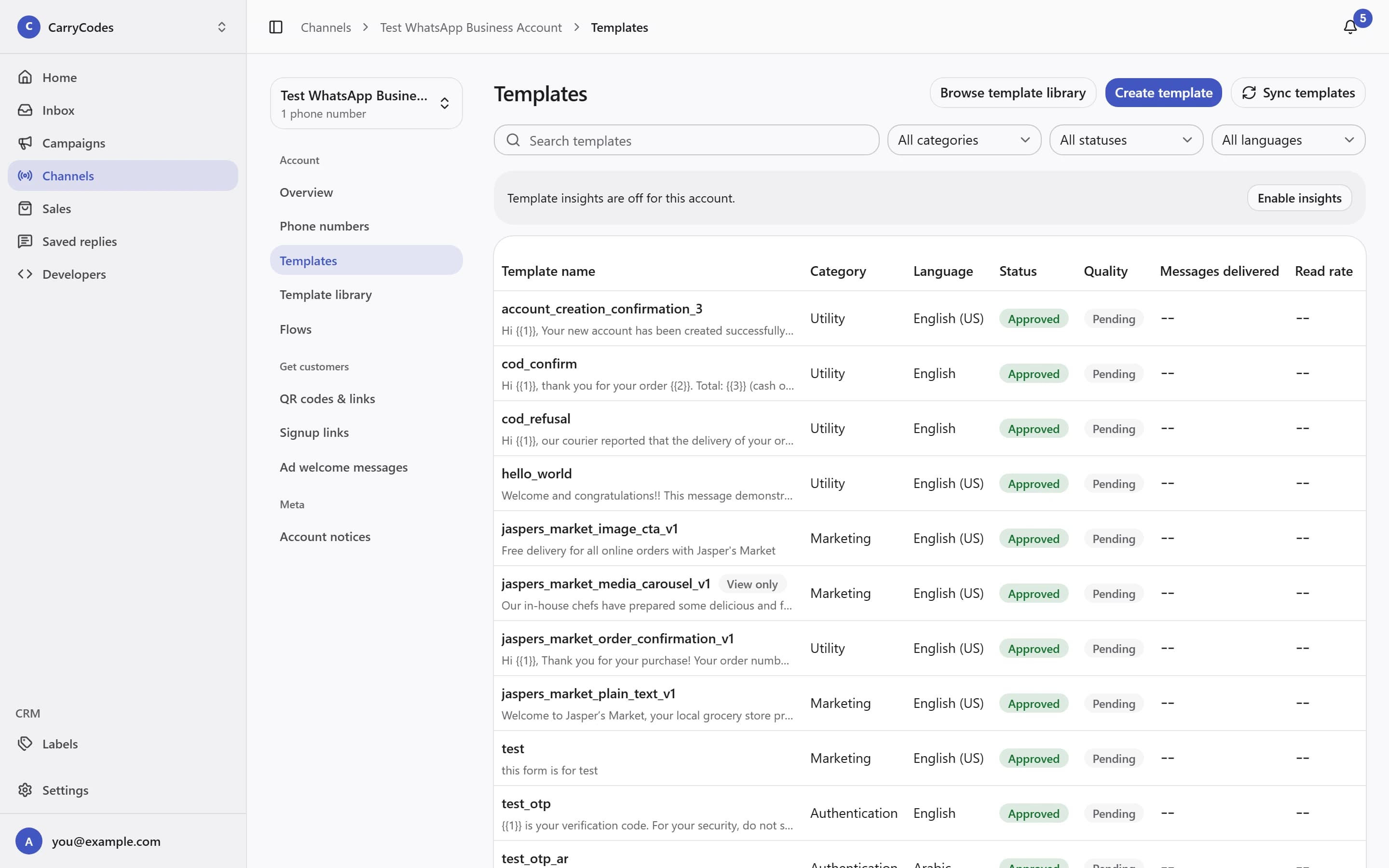
The template library shows the categories and review statuses used to prepare an approved Authentication template. API and webhook steps are covered in the guides below.
A question on WhatsApp. A customer’s choice. An answer your store team can review.
Example template wording. Your approved template supplies the button labels in this action order.
A change of plan? Change time offers your configured delivery days and time-range labels. Review the collected answer in Log before arranging delivery.
See COD confirmationsOnce you receive an invitation, these are the steps to get your workspace ready.
Use Meta's signup to connect your WhatsApp number to your workspace.
Invite members and give them the permissions they need.
Reply to customers in the inbox and send approved templates when you need to reach out.
Send your own verification codes with the OTP API. Request order confirmations with the COD API. Receive outcomes through signed HTTPS webhooks.
You generate and verify OTP codes. Watification handles the message delivery.
Read the developer quickstartawait fetch('https://api.watification.com/api/v1/otp/messages', {
method: 'POST',
headers: {
Authorization: `Bearer ${process.env.WATIFICATION_API_KEY}`,
'Content-Type': 'application/json',
'Idempotency-Key': 'login-example-001',
},
body: JSON.stringify({
to: '+15555550123',
senderId: '11111111-1111-4111-8111-111111111111',
template: { name: 'login_code', language: 'en' },
code: '483920',
reference: 'login-example-001',
}),
});Illustrative values. Use a recipient you control, your own sender, and an approved template. Requests can send real messages.
Access is invite-only while we prepare for launch. Join the waitlist and confirm your email. Invitations go out in small batches; joining does not guarantee an invitation date.
Connect a number through Meta's signup. You can also connect an eligible number already used in the WhatsApp Business app and keep using the app. Availability depends on Meta's eligibility checks; group chats are not imported.
Meta message fees are billed by Meta, separately from your Watification plan. Watification's dashboard cost figures are approximate; your invoice is the source of truth.
You can send free-form replies within 24 hours of the customer's last message. Outside that window, you need a template approved by Meta. Sending a template does not reopen the reply window.
Your store or application sends confirmation requests through the COD API. A developer needs to connect that flow. Your team can manage settings and review answers in the dashboard.
No. Your application generates, expires, and verifies the code. Watification sends it using an approved authentication template and provides message status and signed webhooks.
Join the waitlist for invite-only access to Watification.
Joining the list does not guarantee an invitation date.